
Install Node.js on Windows
Essential runtime environment for AI programming tools
Important Note
Claude Code, CodeX, and Gemini CLI all require Node.js 18+ runtime. If you already have Node.js 18 or higher installed, you can skip this section. Verify with: node -v
Method 1: Official Installer (Recommended)
Download the Installer
Visit the Node.js official website: https://nodejs.org/en/download, and download the LTS (Long Term Support) version Windows Installer (.msi).
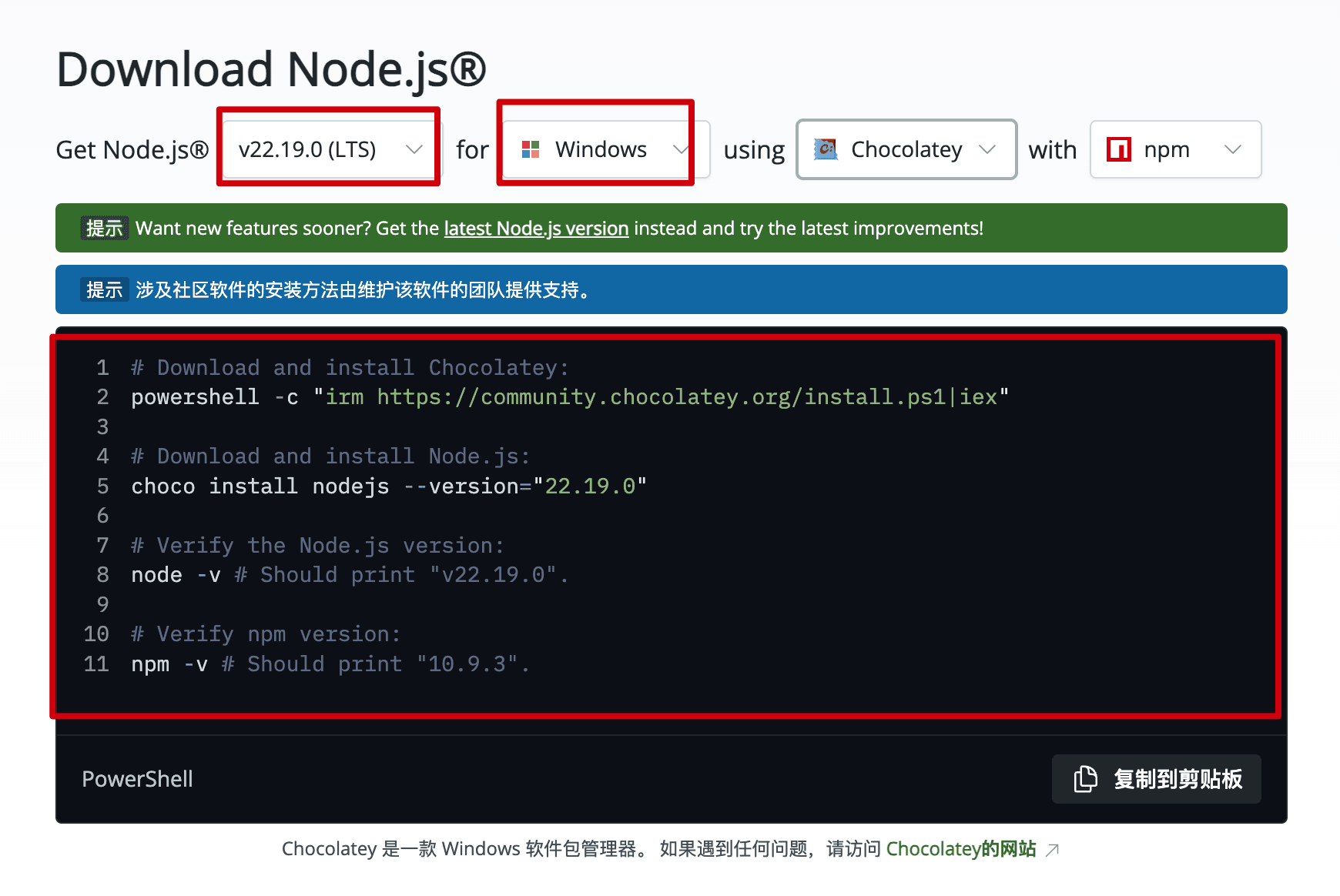
Run the Installer
Run the installer with default settings. The installer will automatically configure the system PATH environment variable.
Method 2: Package Manager Installation
Windows 11 or latest Windows 10:
winget install OpenJS.NodeJS.LTSRequires Chocolatey to be installed first:
choco install nodejs-ltsscoop install nodejs-ltsVerify Installation
Open Command Prompt or PowerShell and run:
node --version
npm --version
If version numbers are displayed (e.g., v18.x.x or higher), the installation was successful.
Common Issues
"Not recognized as an internal or external command"
- Reopen the terminal window
- Check if the PATH environment variable includes the Node.js path
- Restart your computer and try again
Installation Failed
- Run the installer as administrator
- Disable antivirus software and retry
- Check if there is sufficient disk space
Next Steps
Environment Ready!
You can now proceed to install Claude Code, CodeX, or Gemini CLI.
How is this guide?