
Hapi Remote Control Guide
Control your AI programming assistant from anywhere
Introduction
Hapi is a local-first application that lets you run Claude Code / Codex / Gemini sessions locally and control them remotely via Web / PWA / Telegram Mini App. This means you can monitor and manage your AI programming tasks from your phone or browser.
- Official Documentation: https://hapi.run/
- GitHub Repository: https://github.com/tiann/hapi
Core Features
- ✅ Seamless Switching: Switch seamlessly between local native environment and remote control
- ✅ Remote Sessions: Initiate remote sessions from any device
- ✅ Mobile Monitoring: Monitor and manage tasks via phone or browser
- ✅ Permission Control: Remotely approve/reject tool permissions
- ✅ File Browsing: Browse files and view git diffs
- ✅ Progress Tracking: Track progress via todo lists
- ✅ Multi-Backend Support: Supports Claude Code, Codex, Gemini
Installation Steps
Prerequisites
Please ensure Node.js 18+ is installed. If not, refer to the Node.js installation guide.
Install Hapi
We recommend using npx to quickly start the Hapi server:
npx @twsxtd/hapi serverAfter starting, the Token credentials and access address will be displayed.
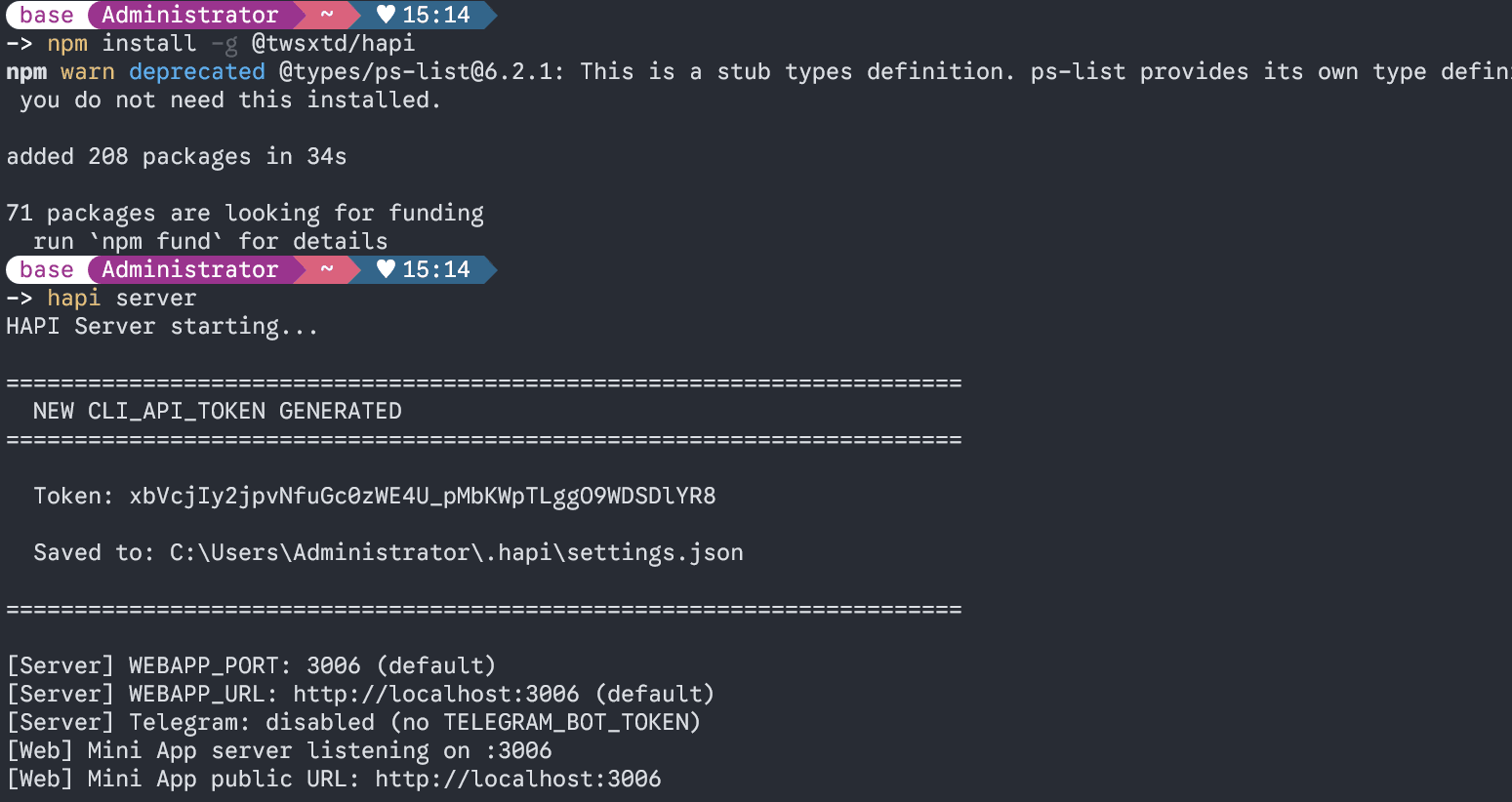
Make sure to save the Token credentials! This is the only credential for connecting to and controlling your Hapi service.
Start an AI Session
Execute the following commands in your project directory to start the corresponding AI service:
Start Claude Code:
hapi claudeStart Codex:
hapi codexStart Gemini:
hapi geminiLAN Access
You can now access and control your AI programming assistant within the local network via http://<server-ip>:3006!
Configure Cloudflare Tunnel
If you want to access your Hapi service from anywhere (including external networks), you can use Cloudflare Tunnel for tunneling.
Prerequisites
- A domain name (any domain will work)
- A Cloudflare account (free account is sufficient)
Configuration Steps
Follow the Cloudflare Tunnel official documentation:
- Log in to the Cloudflare Zero Trust console
- Create a new Tunnel
- Install the cloudflared client
- Configure the tunnel name
- Configure the public hostname
- Set the service address to
localhost:3006(Hapi default port) - Complete the configuration
Using Hapi
After configuration, you can access it via:
- Local Access:
http://localhost:3006 - LAN Access:
http://<server-ip>:3006 - Public Access:
https://your-domain.com(if Cloudflare Tunnel is configured)
Usage steps:
- Open a browser and navigate to the Hapi address
- Enter the Token to log in
- Select the AI backend to start (Claude / Codex / Gemini)
- Begin remote controlling your AI programming assistant
Usage Tips
- Access from a mobile browser to monitor task progress anywhere, anytime
- Can be installed as a PWA app for a native-app-like experience
- Supports multiple devices connecting and controlling simultaneously
Security Recommendations
- Do not share your Token with others
- If using public access, consider enabling Cloudflare security features (such as Access policies)
- Regularly rotate your Token
- Only use in trusted network environments
FAQ
Cannot connect to the server?
- Check if the Hapi service is running properly
- Confirm the firewall is not blocking port 3006
- Verify the Token is correct
Cloudflare Tunnel configuration failed?
- Confirm the domain is properly added to Cloudflare
- Check if the cloudflared client is properly installed
- Review cloudflared logs for troubleshooting
Advanced Optimization: Cloudflare Preferred IP High-Speed Tunneling
If you want to further improve Hapi's access speed (especially in China's network environment), you can configure Cloudflare preferred IPs.
Use Case
Already configured Cloudflare Tunnel but experiencing slow access and high latency. By using Cloudflare for SaaS + preferred IP services, bypass congested nodes and reduce latency from hundreds of milliseconds to tens of milliseconds.
Default Tunnel Pain Points
- ❌ Cloudflare's assigned Anycast IPs may be routed through distant locations (US, Europe)
- ❌ ISP QoS throttling results in slow access
- ❌ Latency can reach hundreds of milliseconds, severely impacting experience
Preferred IP Solution Advantages
- ✅ Force traffic through nodes friendly to your region (e.g., Hong Kong, Singapore)
- ✅ Significantly improve access speed, reducing latency to tens of milliseconds
- ✅ Completely free, leveraging Cloudflare enterprise-grade features
- ✅ High stability with automatic optimal route switching
How It Works
When a user accesses your domain, the traffic flows as follows:
User Browser
    ↓
DNS Resolution: hapi.yourdomain.com
    ↓
CNAME → cdn.yourdomain.com
    ↓
CNAME → isp.qzz.io (Preferred IP Dispatcher)
    ↓
Returns optimal Cloudflare IP (based on user's ISP)
    ↓
Cloudflare Edge Node (identified via Host Header)
    ↓
SaaS Route: hapi.yourdomain.com → hapi.auxiliary.com
    ↓
Cloudflare Tunnel (encrypted tunnel)
    ↓
Your local server localhost:3006
isp.qzz.io acts as a "smart traffic controller", automatically selecting the optimal Cloudflare CDN node IP based on your network environment.
Prerequisites
You need to prepare:
- Primary domain: The domain shown to users (e.g.,
hapi.yourdomain.com) - Auxiliary domain: The domain hosting the Cloudflare Tunnel (e.g.,
auxiliary.com) - Both domains must be managed on Cloudflare
- The primary and auxiliary domains cannot be the same domain
- The auxiliary domain must be one you own
- Both domains must be managed on Cloudflare
Configuration Steps
Step 1: Configure Cloudflare Tunnel (Auxiliary Domain)
Set up a Tunnel on the auxiliary domain:
- Log in to Cloudflare and select the auxiliary domain
- Go to Zero Trust → Access → Tunnels
- Create a tunnel and install cloudflared
- Configure public hostname:
- Subdomain:
hapi - Domain: Select auxiliary domain
- Service:
http://localhost:3006
- Subdomain:
After completion, you should be able to access your Hapi service via hapi.auxiliary.com.
Step 2: Enable Cloudflare for SaaS (Auxiliary Domain)
Enable SaaS functionality on the auxiliary domain:
- Go to Cloudflare dashboard, select auxiliary domain
- Navigate to SSL/TLS → Custom Hostnames
- Click Add Custom Hostname
- Enter Custom Hostname:
hapi.yourdomain.com(primary domain) - Wildcard: unchecked
- Click Add Custom Hostname
After adding, 2 TXT verification records will be generated. Don't configure them yet, proceed to the next step.
Step 3: Configure DNS Records (Primary Domain)
Add the following records in the primary domain's DNS settings:
Add SSL verification records:
| Type | Name | Content | Proxy Status |
|---|---|---|---|
| TXT | _acme-challenge.hapi | Value copied from SaaS page | DNS only |
Add CNAME records:
| Type | Name | Content | Proxy Status |
|---|---|---|---|
| CNAME | cdn | isp.qzz.io | DNS only ⚠️ |
| CNAME | hapi | cdn.yourdomain.com | DNS only ⚠️ |
Critical Configuration
You must disable the orange cloud (set proxy status to "DNS only")! If proxy is enabled, the DNS resolution chain will break and preferred IP won't work.
Step 4: Configure Fallback Origin (Auxiliary Domain)
Ensure the following record exists in the auxiliary domain's DNS settings:
| Type | Name | Content | Proxy Status |
|---|---|---|---|
| CNAME | hapi | [your-tunnel-ID].cfargotunnel.com | Proxied ✅ |
This record is usually auto-generated when creating the Tunnel. Ensure the orange cloud is enabled (Proxied).
Step 5: Wait for SSL Certificate to Activate
- Go back to the auxiliary domain's SSL/TLS → Custom Hostnames page
- Check the status of the primary domain
- Wait for the status to become Active
SSL certificate issuance typically takes 5-15 minutes. If it hasn't activated after 30 minutes, check if the TXT records were added correctly.
Verify Configuration
Visit https://hapi.yourdomain.com in your browser. If the Hapi interface loads normally, the configuration is successful!
Compare optimization results using ping:
# Before optimization (direct Tunnel)
ping hapi.auxiliary.com
# Latency typically 200-500ms

# After optimization (Preferred IP)
ping hapi.yourdomain.com
# Latency typically 20-100ms
Role Assignment Summary
| Role | Example | Description |
|---|---|---|
| Primary Domain | hapi.yourdomain.com | The address shown to users |
| Auxiliary Domain | hapi.auxiliary.com | Hosts the Tunnel as "fallback origin", not directly visible to users |
| Preferred IP Dispatcher | isp.qzz.io | Acts as a "traffic controller", directing traffic to the fastest route |
| Relay Domain | cdn.yourdomain.com | A bridge directing the primary domain to the preferred IP pool |
Troubleshooting
SSL certificate stuck on Pending?
- TXT records added incorrectly or not yet propagated
- Use DNS checker tool to verify TXT records
- Wait for global DNS propagation (up to 24 hours)
Getting a 526 error?
- The auxiliary domain's
hapirecord doesn't have proxy enabled (orange cloud) - Ensure the Tunnel is running properly
Still slow?
- The primary domain's CNAME records have proxy enabled (should be DNS only)
- Use
nslookupto check if the DNS resolution chain is intact
Related Resources
How is this guide?